
Headings
The Headings panel validates the H1–H6 outline and can rewrite headings with AI, applying accepted changes live on the page.
The Headings panel maps the page's H1–H6 outline, flags structural problems, and can generate AI rewrites you apply directly on the live page. Headings are how search engines and screen readers parse a page's structure, and how a searcher scans it. A broken outline weakens topical signals and accessibility at once, so it is one of the faster on-page fixes to make.
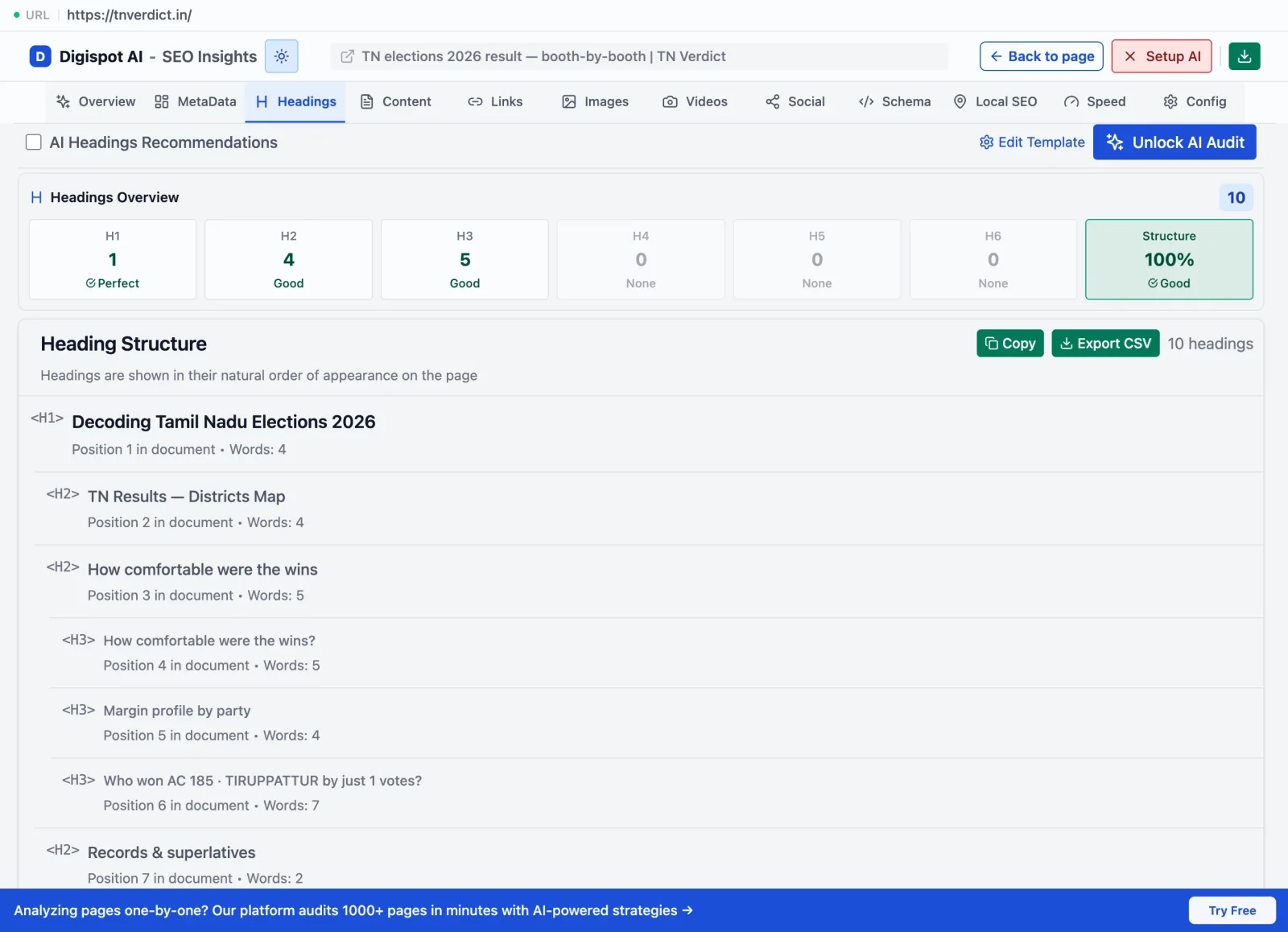
Headings overview
The panel opens with a Headings Overview: a count of how many headings sit at each level H1–H6, an overall Structure score, and a list of the issues found. Each level is marked Good, Multiple, or None, so a missing H1 or a stack of H1s stands out at a glance.
The structural faults it flags:
- Missing H1, multiple H1s, or skipped levels. Every page should have exactly one H1, and levels should descend in order (an H2 followed by an H4 skips a level and breaks the outline)
- Empty or duplicate headings. Headings with no text carry no signal, and identical headings blur the page's structure
- Over-optimized headings: keyword stuffing, which reads as spam rather than as a clear label
- Keyword distribution across the outline, so the topic is reinforced in headings rather than buried in body text
Heading structure
Below the overview, every heading is listed in its natural order of appearance, with its level, position, and text.
Headings are also checked for length. A heading past the warning threshold is long enough to read as a sentence rather than a label. Past the error threshold, it is almost certainly too long to scan.
| Level | Warning above | Error above |
|---|---|---|
| H1 | 50 chars | 100 chars |
| H2 | 60 chars | 120 chars |
| H3 | 70 chars | 140 chars |
| H4 | 80 chars | 160 chars |
| H5 | 90 chars | 180 chars |
| H6 | 100 chars | 200 chars |
AI recommendations
Switching on AI headings recommendations turns the panel from an audit into a rewrite tool. Pick the detected industry (with a confidence badge) and intent, then generate optimized alternatives. They appear side by side with the originals.
- Accept or Reject each suggestion. You can also drive this from the on-page badges
- Apply selected writes the accepted headings live into the page (this needs one-time access to the current site)
- Accept all, Reject all, or Reset to restore the originals
- Export the headings and recommendations as CSV
Applying a heading edits the live page in your browser for preview. It does not change the published site. To make it permanent, update your CMS.