
Viewing Modes & Overlays
Popup, Visualize, and Fullscreen modes — plus visual on-page overlays that mark headings, images, videos, and links directly on the page.
The extension has three viewing modes. Most people start in Popup for a quick check, switch to Visualize to show an issue in context on the page itself, and use Fullscreen for a deep audit with side-by-side content.
The three modes
| Mode | How to open | Best for |
|---|---|---|
| Popup | Click the toolbar icon | Fast spot checks without leaving the page |
| Visualize | Click Inspect in the popup | Showing clients or developers exactly where issues are |
| Fullscreen | Click the external-link icon in the popup, or right-click → "Open SEO Insights in Full Screen" | Detailed audits with full category breakdown, charts, and AI |
Light and dark themes are supported in all three modes.
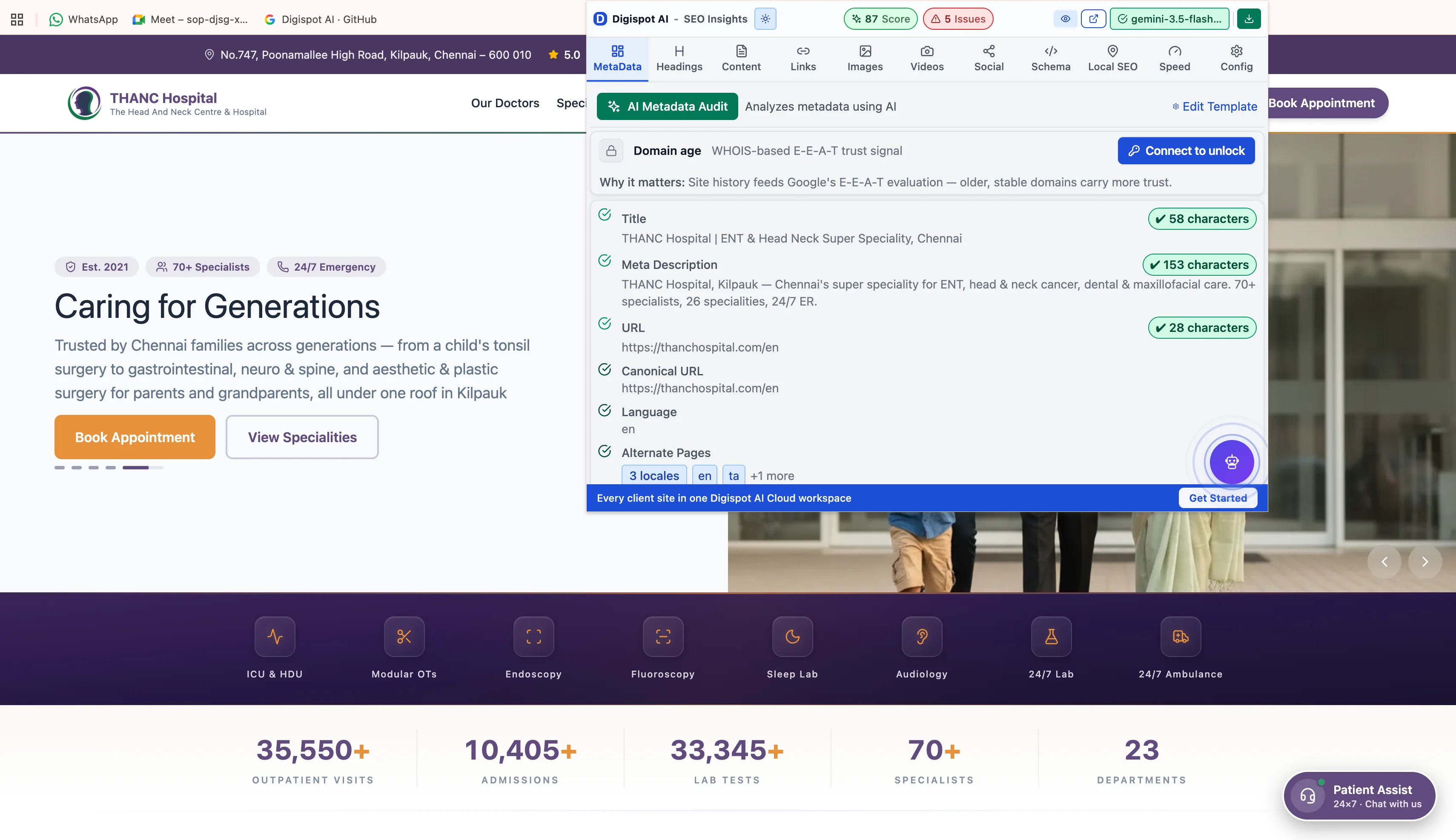
Popup
The popup opens in a compact window over the current page without navigating away. It shows the score, the category panels, and quick filters. All 150+ checks run here. The other modes just display the same data differently.
Visualize (on-page overlays)
Visualize mode collapses the popup to a compact sidebar (~80px). It then injects badges directly onto the live page, so problems show up in context rather than buried in a list. Four overlay types each have their own toggle:
- Headings (H1–H6): level badges on every heading. A missing H1 or a skipped level is visible at a glance, without reading source code
- Images: flags missing alt text and other image issues at the image itself
- Videos: markers on embedded and hosted video
- Links: indicators on internal and external links, including nofollow
Toggle each type independently. Keyword highlighting marks where your focus keyword appears on the page with a green indicator. Collapse the sidebar further to keep the page fully visible while you work.
On-page badges are the fastest way to show a developer or client exactly which element has a problem: no spreadsheet, no scrolling through a list. Screenshot the page with overlays on to create instant visual evidence for a brief.
Fullscreen
Fullscreen opens in a dedicated browser tab and adds:
- The Overview tab: a full-site score rollup, SERP preview, quick wins, and a Full Audit that runs one AI review across all panels at once
- Side-by-side AI Chat panel
- Expanded charts and visualizations
- Access to the complete Config (AI, prompts, cache, account)
Fullscreen can also be opened directly from the right-click context menu on any page. There is no need to open the popup first.
Visual on-page overlays
When Visualize mode is on, a sidebar shows OVERLAYS controls: per-type toggles (H1-H6, IMGS, VIDS, LINKS) and a CLEAR/RESET button. The overlays persist as you scroll, and they survive page interactions.