
Backlink research
Profile the domains linking to a site with a health verdict, six headline metrics, and a sortable referring-domains table — generated as part of an audit run.
Backlink research profiles the domains linking to a site so both authority and risk stay visible. Open Backlinks Analysis in the left sidebar. Unlike keyword and SERP research, it isn't a standalone lookup — the profile is generated when an audit runs with Backlinks Analysis enabled.
If the page is empty, turn on Backlinks Analysis in the audit configuration, run
an audit, then pick that run from the selector at the top of the page. A
NO_DATA result means the provider hasn't indexed the domain yet — common for
new or small sites — not that the site has no links.
Profile health
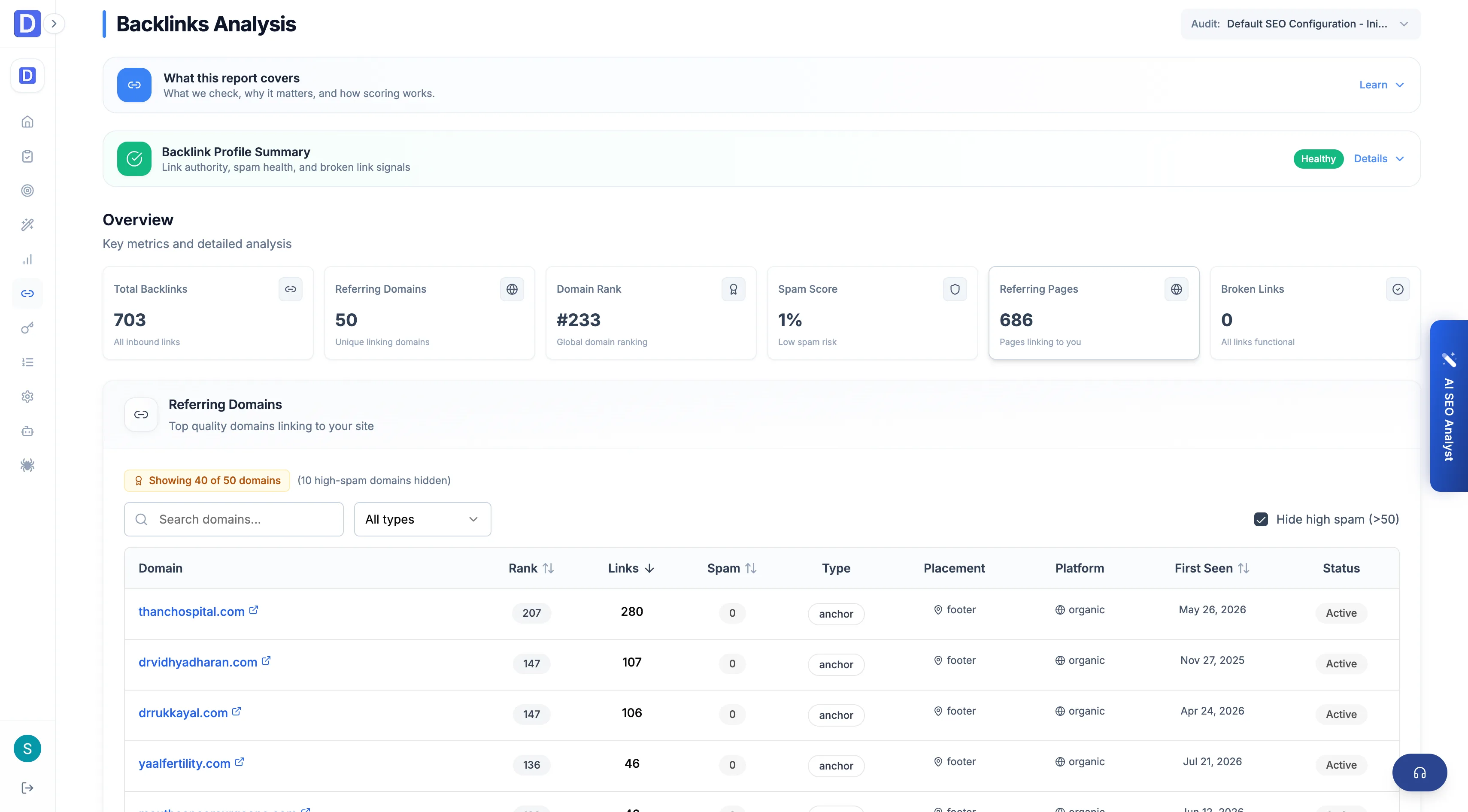
The page opens with a health verdict for the whole profile — Healthy, Review needed, or Critical — computed from spam score, broken links, and referring- domain count. When something needs attention, it lists the specific issue:
- High spam score — above 25% is flagged critical; 10–25% is a warning to review low-quality links
- Broken backlinks — above 300 is critical; 50–300 suggests adding redirects to recover the lost link authority
- Thin link profile — fewer than 20 referring domains prompts a push for more quality links
Headline metrics
Six cards summarize the profile at a glance.
- Total backlinks — every inbound link found
- Referring domains — the unique domains linking in
- Domain rank — the site's global ranking position
- Spam score — the share of the profile that looks low-quality, as a percentage
- Referring pages — the individual pages linking to the site
- Broken backlinks — inbound links that no longer resolve
Referring domains
The referring-domains table is where the profile gets actionable. High-spam domains are hidden by default so a toxic tail doesn't distort the read.
- Domain — the linking site, opening in a new tab
- Rank — that domain's authority score
- Links — how many backlinks it sends
- Spam — its spam score, colored red above 40% and amber above 20%
- Type and placement — the link's kind and where on the page it sits
- First seen — when the backlink was discovered
- Status — active or lost
Sort by rank, link count, spam, or first-seen date, filter by link type, and search by domain name. The default spam filter hides domains scoring above 50 — uncheck Hide high spam to see them, and the table reports how many are hidden.
SERP research
Capture a live Google results page for any query, track how the project's keywords rank over time, and see every query the domain ranks for — with device, language, and depth control.
Content Studio
Content Studio is the AI content suite — create and edit articles, generate infographics, and manage everything through plans and a library.