
Getting Started
Sign up, create your organization, walk through the project wizard, and run your first cloud audit — plus where to install the free Chrome extension and SEO Spider.
The Cloud Platform is Digispot's team product. It provides shared projects, audits that run on Digispot's servers, and Google Search Console and GA4 dashboards. It works in any browser. Nothing to install for the cloud itself.
If you are brand new to Digispot, here is the full path from sign-up to your first audit. The other Digispot products run on the same account, and both are free to start (paid plans unlock more later).
Before you begin
| What | Do you need it? |
|---|---|
| Cloud Platform (this guide) | A browser and a Digispot account |
| SEO Insights extension | Optional — audit any single page free, no signup |
| SEO Spider desktop app | Optional — crawl whole sites on your Mac or PC; free Scout tier (100 pages/crawl) |
All three share one Digispot account once you sign up.
Step 1 — Create an account
Go to app.digispot.ai and sign up with email and password, or Continue with Google.
- Signing up creates your organization (your company or agency workspace) and makes you its Admin.
- Email/password sign-ups must click the confirmation link in their inbox before the first login.
- Google sign-in skips email verification.
After login, if you have no projects yet, the dashboard prompts you to Create Your First Project.
Step 2 — Create your first project
A project is one website you audit: your own site, a client's, or a brand you manage. Creating a project opens a short 4-screen wizard. Plan about 3 minutes if you fill fields manually, or ~1 minute if you use Auto-fill.
You can reopen the wizard anytime from Settings → Projects → New project.
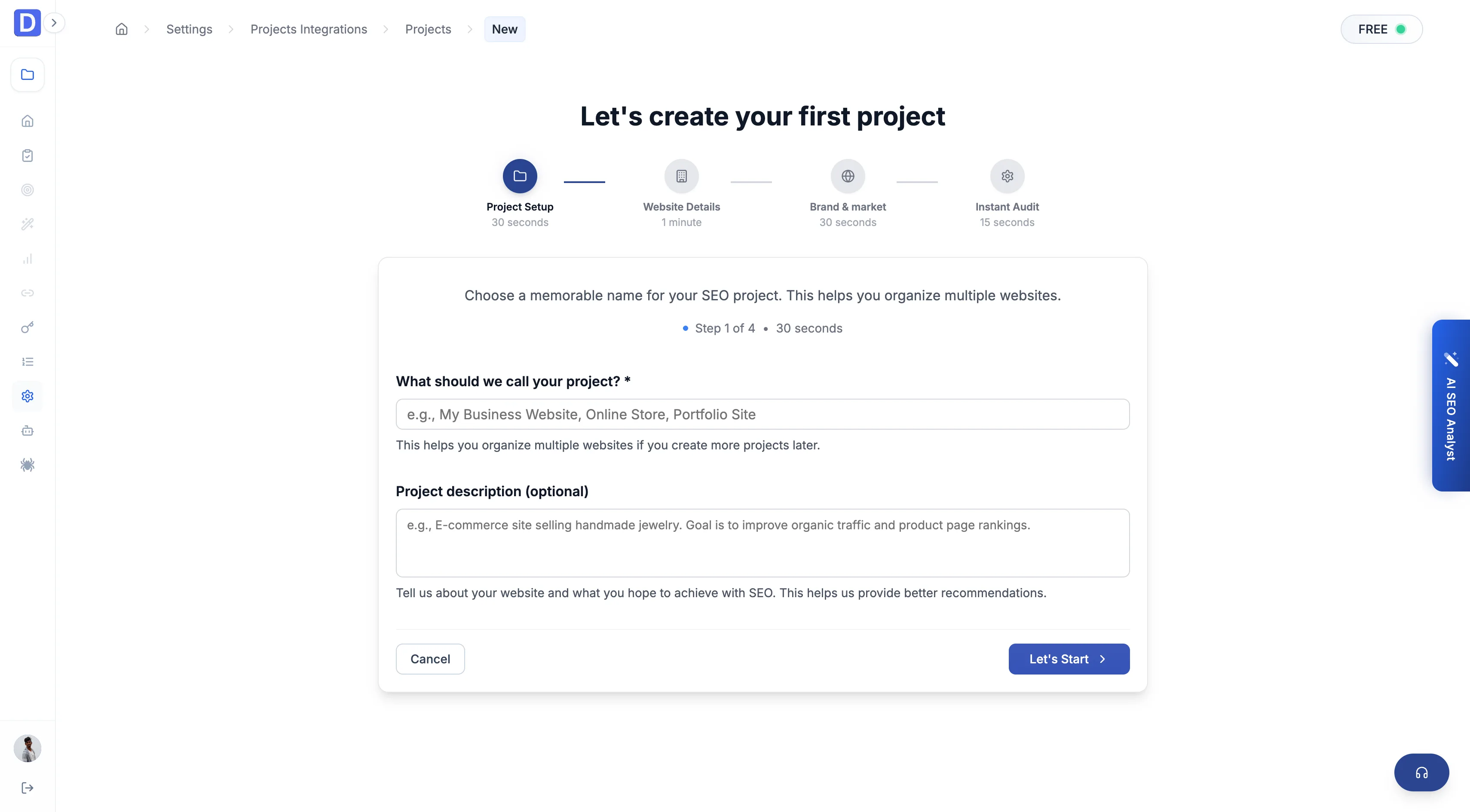
Screen 1 — Project setup (~30 seconds)
Give the project a name your team will recognize.
| Field | Required? | What to enter |
|---|---|---|
| Project name | Yes | 3–50 characters — e.g. Acme Marketing Site or Client — Bright Dental |
| Project description | No | Internal notes — goals, stakeholders, or scope |
Click Let's Start to continue.
Screen 2 — Website details (~1 minute)
Tell Digispot which site this project covers.
| Field | Required? | What to enter |
|---|---|---|
| Website URL | Yes | The homepage URL — e.g. https://example.com |
| Business domain | Yes | Your industry vertical (Technology, Healthcare, Ecommerce, etc.) |
| Sitemap URL | No | Your XML sitemap if you know it — use Verify to check it loads |
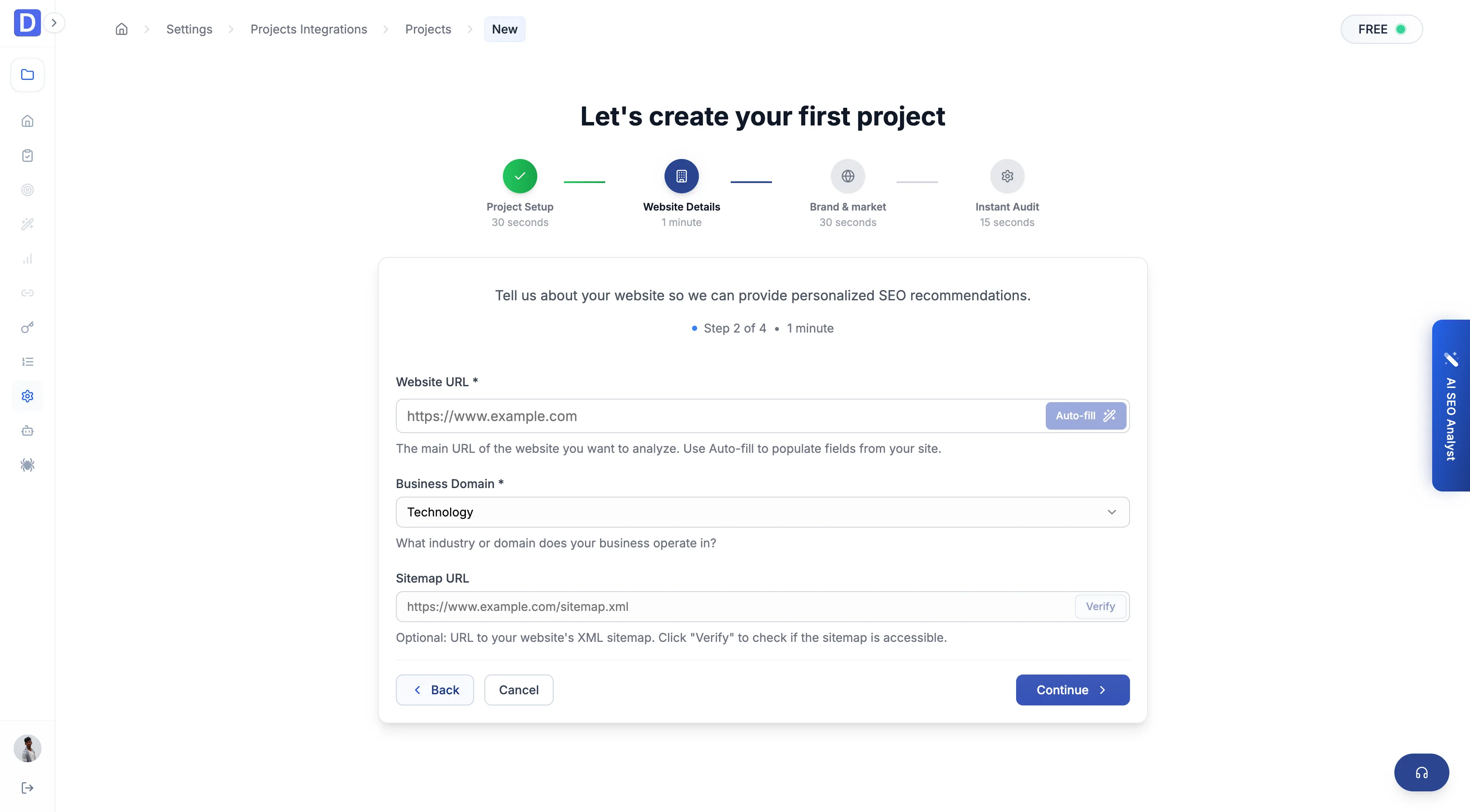
Auto-fill (recommended): After you paste the website URL, click the Auto-fill button (wand icon). Digispot reads your site and fills in the business domain, sitemap, brand keyword, target country, competitors, keywords, and a short business summary. Fields marked AI-filled stay editable.
Auto-fill requires a paid plan that includes AI features. On the free plan you enter these fields manually — it only takes an extra minute.
When Auto-fill finishes, the wizard usually jumps ahead to Screen 3 so you can review what it found. Otherwise click Continue.
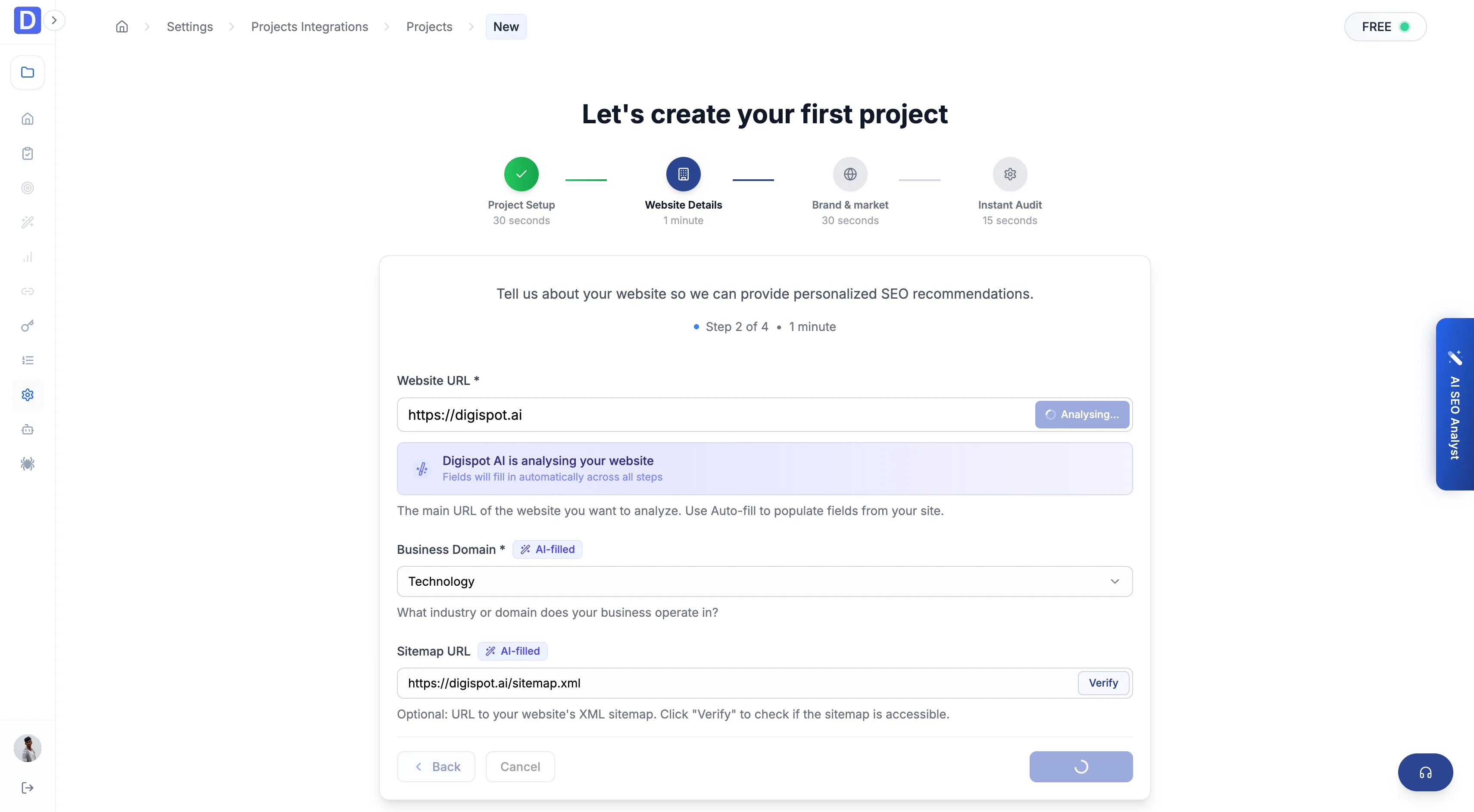
Screen 3 — Brand & market (~30 seconds)
These fields shape keyword research, competitor tracking, and how reports are labeled.
| Field | Required? | What to enter |
|---|---|---|
| Brand keyword | Yes | Your primary brand name — e.g. Digispot |
| Location country | Yes | The market you optimize for — e.g. United States, India, United Kingdom |
| Primary competitors | No | One competitor website URL per line |
| Target keywords | No | Comma-separated phrases you care about |
| Business details | No | A short summary of what the business does — expand Edit to change the AI draft |
Click Continue.
Screen 4 — Instant audit (~15 seconds)
The last screen confirms what happens right after the project is saved.
| Option | Default | What it does |
|---|---|---|
| Local SEO | Off | Enable if you serve customers in a geographic area (map pack, NAP, location pages) |
| International SEO | Off | Enable for multi-country or hreflang sites |
| Start analyzing my website now | On | Creates a default audit config and starts the first crawl immediately |
Every audit always includes core checks: content, meta tags, performance, links, schema, images, video, and AI/LLM crawler visibility. It also adds backlinks and content-gap reports. Device type defaults to Mobile (Google's mobile-first index). Page limit depends on your plan.
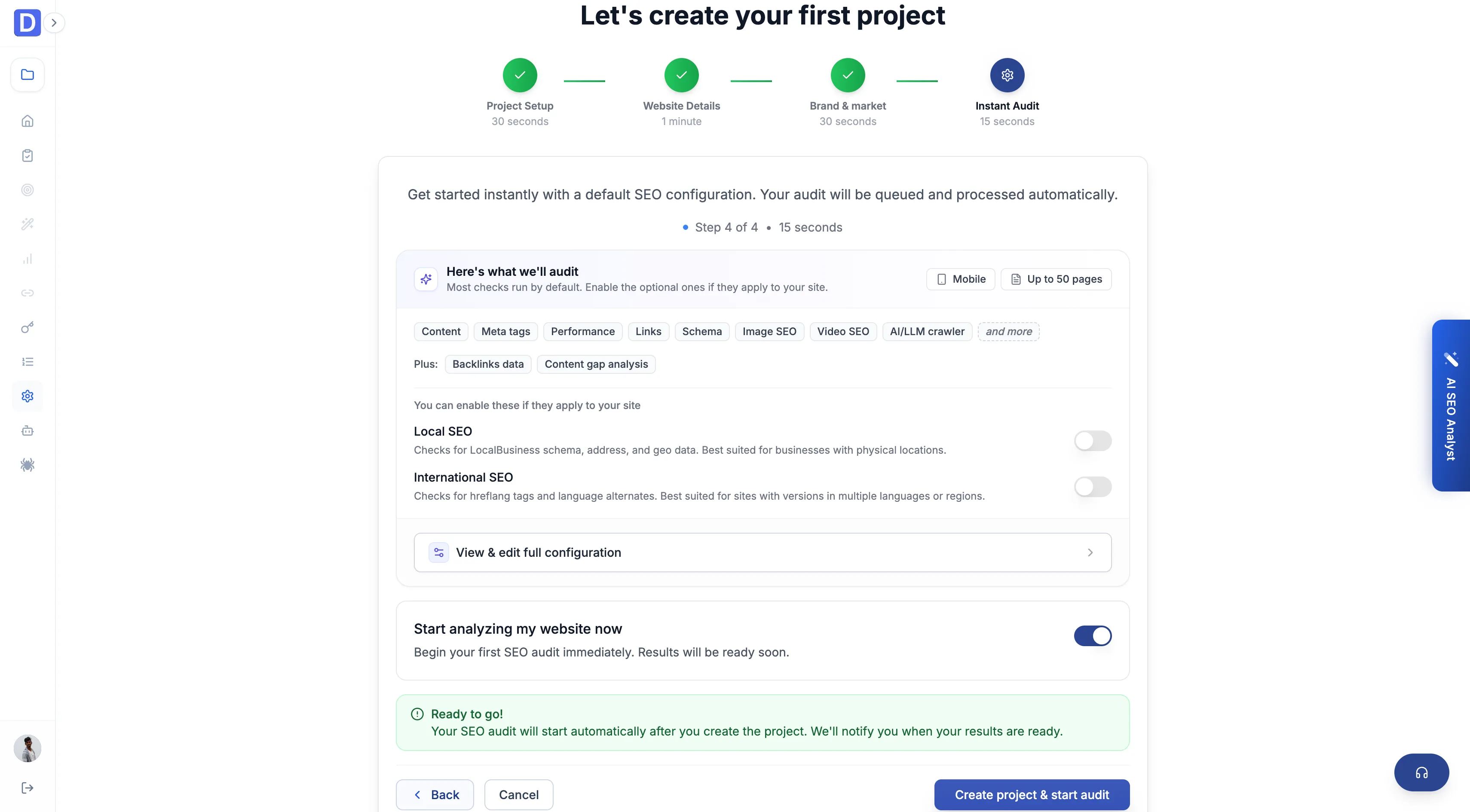
- Toggle Start analyzing… off if you only want to save the project and configure the audit later.
- Click View & edit full configuration for advanced settings (device type, max pages, individual toggles).
Click Create project & start audit (or Create project if you turned off the instant run).
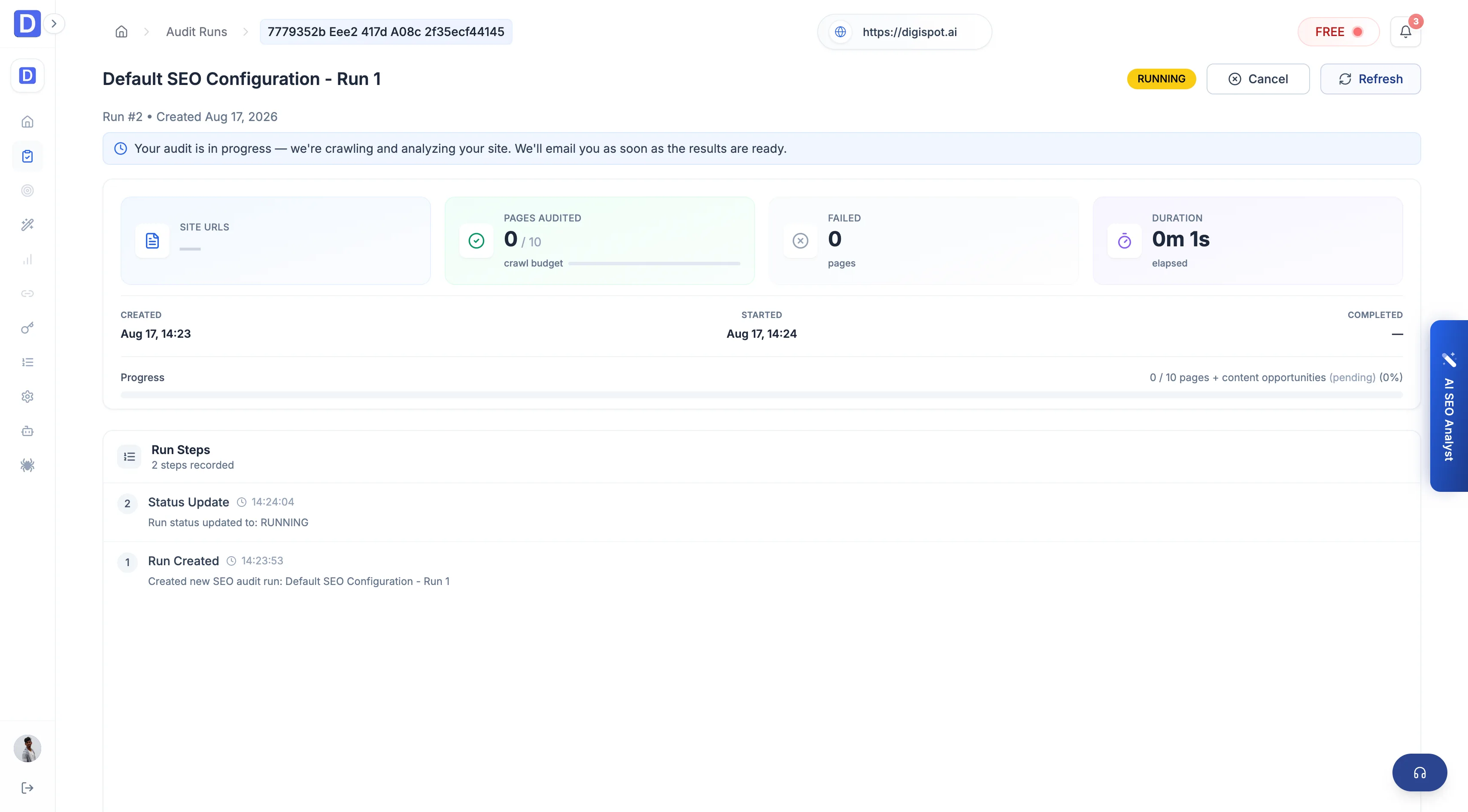
Where you land next:
- Audit started → Audit run page with live progress
- Project only → Dashboard or Audit runs list
Step 3 — Connect Google (recommended)
After the project exists, connect Google Search Console, GA4, and optionally Google Business Profile under Settings → Integrations.
This is what makes cloud audits useful at scale: issues are ranked by the traffic they put at risk, not just listed alphabetically.
See Google Insights for the full setup walkthrough.
Step 4 — Invite your team (optional)
Add teammates from Settings → Team. Each person gets an email invite and one of two roles:
- Specialist — run audits and view reports for assigned projects
- Admin — manage billing, integrations, and project settings
See Teams & roles.
Step 5 — Review your first audit
When the crawl finishes, open the run from Audit runs on the dashboard. Reports are grouped by category: crawlability, content, performance, schema, local SEO, and more. Each category carries a grade and a prioritized issue list.
To run another crawl or change scope, create or edit an audit configuration first. See Audits & reports.
Install our other products (optional)
The Cloud Platform does not replace every workflow. Many teams use all three Digispot products on the same account:
SEO Insights — Chrome extension (free)
Audit one page at a time while you browse. 150+ checks, no signup required for core features.
| Install guide | Install the extension |
| Chrome Web Store | Digispot AI — SEO Insights |
| Price | Free — optional paid features via a Digispot Extension Key |
SEO Spider — desktop app (free to start)
Crawl your whole site on your Mac or PC. Data stays on your machine, which is good for client work and large sites.
| Install guide | Install SEO Spider |
| Download page | digispot.ai/products/digispot-ai-seo-spider |
| Free tier | Scout — 100 pages per crawl, mobile rendering, no credit card |
| Paid unlock | Tracker and Leader raise page limits, add tablet/desktop modes, AI, MCP, and Google integrations — see plans |
Cloud Platform plans and Spider plans are separate. A cloud subscription does not automatically unlock Spider desktop features, and vice versa. One account works for both. Each product has its own billing.
Cloud plan limits
The cloud free plan covers core auditing with limits on pages, AI features, and some modules (such as Content Studio). Paid plans raise crawl limits and unlock AI-assisted project setup, Content Studio, and higher research credits.
See Plans & billing.