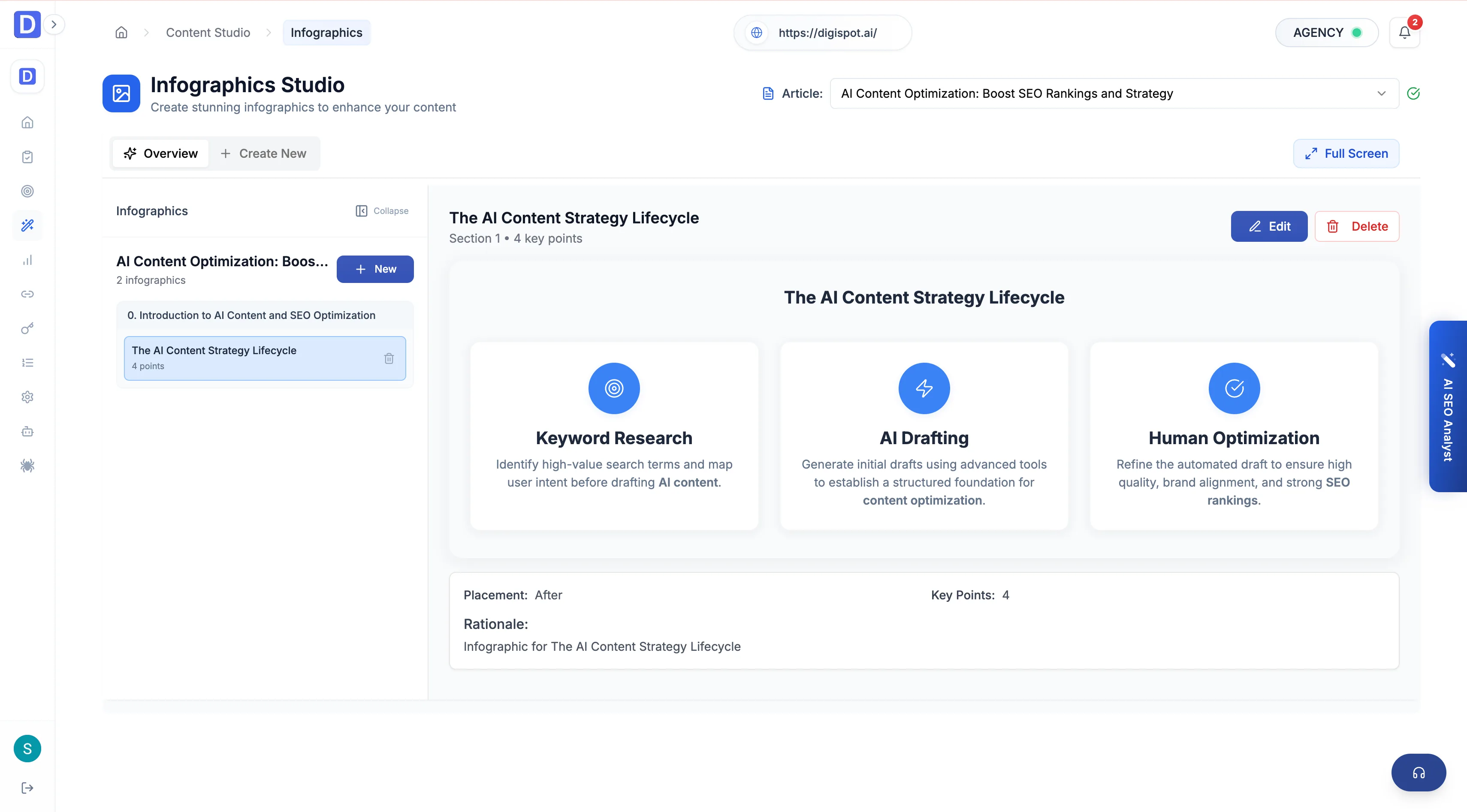
Infographics
The Infographics studio generates branded infographics with control over palette, icons, typography, and dimensions.
The Infographics studio turns an existing article into a branded visual. Pick a source article, then control palette, type, icons, and dimensions so the output matches the site it will sit on.
Like the rest of Content Studio, infographics require an active paid plan and aren't available on Free. An infographic is built from a saved article, so generate the article first, then select it here.
Source article
Generation starts from an article selector listing the project's saved pieces. The chosen article's content is parsed into the infographic's structure, so the visual reflects the article rather than a blank template.
Palette, type, and icons
Three controls set the look, each with curated presets.
- Color palette — named presets such as Executive Navy, Minimal Scandinavian, and High Contrast Pro. They are grouped from corporate to creative, to keep the graphic on-brand.
- Typography — curated font families organized into categories (sans-serif, serif, display), each with a readability note
- Icons — an icon selector for the visual accents on each data point
Dimensions
The output aspect ratio is chosen from presets, each mapping to a fixed pixel size:
| Preset | Aspect ratio | Size |
|---|---|---|
| Blog Infographic (default) | 4:3 | 1200 × 900 |
| Long-form | 2:5 | 1000 × 2500 |
| Square | 1:1 | 900 × 900 |
| Blog Cover / Hero | 16:9 | 1600 × 900 |
Match the dimension to where the graphic will live: Long-form for an in-body explainer readers scroll, Square for social, and Blog Cover / Hero for the header image. The 4:3 default suits a standard mid-article infographic.